,-make-an-image-using-it-as-a-reference---Make-it-an-image-of-a-3d-space,-the-camera-is-above-the-scene-looking-down---The-scene-is-on-a-white-background---Each-squ-(4).png)
Adding & Sorting with Metafields
Product metafields are available on any Sort'd Merchandiser Premium plan
In Sort'd, you can view and sort by product metafields. The following guide will explain how to add metafields in Sort'd and how to use them in the Merchandiser/Automations.
What are Product Metafields?
In Shopify's own words, metafields:
help you to customize the functionality and appearance of your Shopify store by letting you save specialized information that isn't usually captured in the Shopify admin. You can use metafields for internal tracking, or to display specialized information on your online store in a variety of ways. For example, a candle seller might want to display a burn time for candles on their product pages, whereas a grocery store might want to display a product expiration date for canned goods.
Product metafields are created in the Shopify admin by going to Settings > Metafields and metaobjects > Products. At the bottom of product page in the Shopify admin, you'll see a 'Metafields' card where you can update the metafield for that product
For a detailed guide on metafields, explore Shopify's metafield guide.
How to add metafields in Sort'd?
Any metafields you wish to use in Sort'd Merchandiser first need to be added to Settings. Navigate to the Settings page and scroll to Saved Metafields.
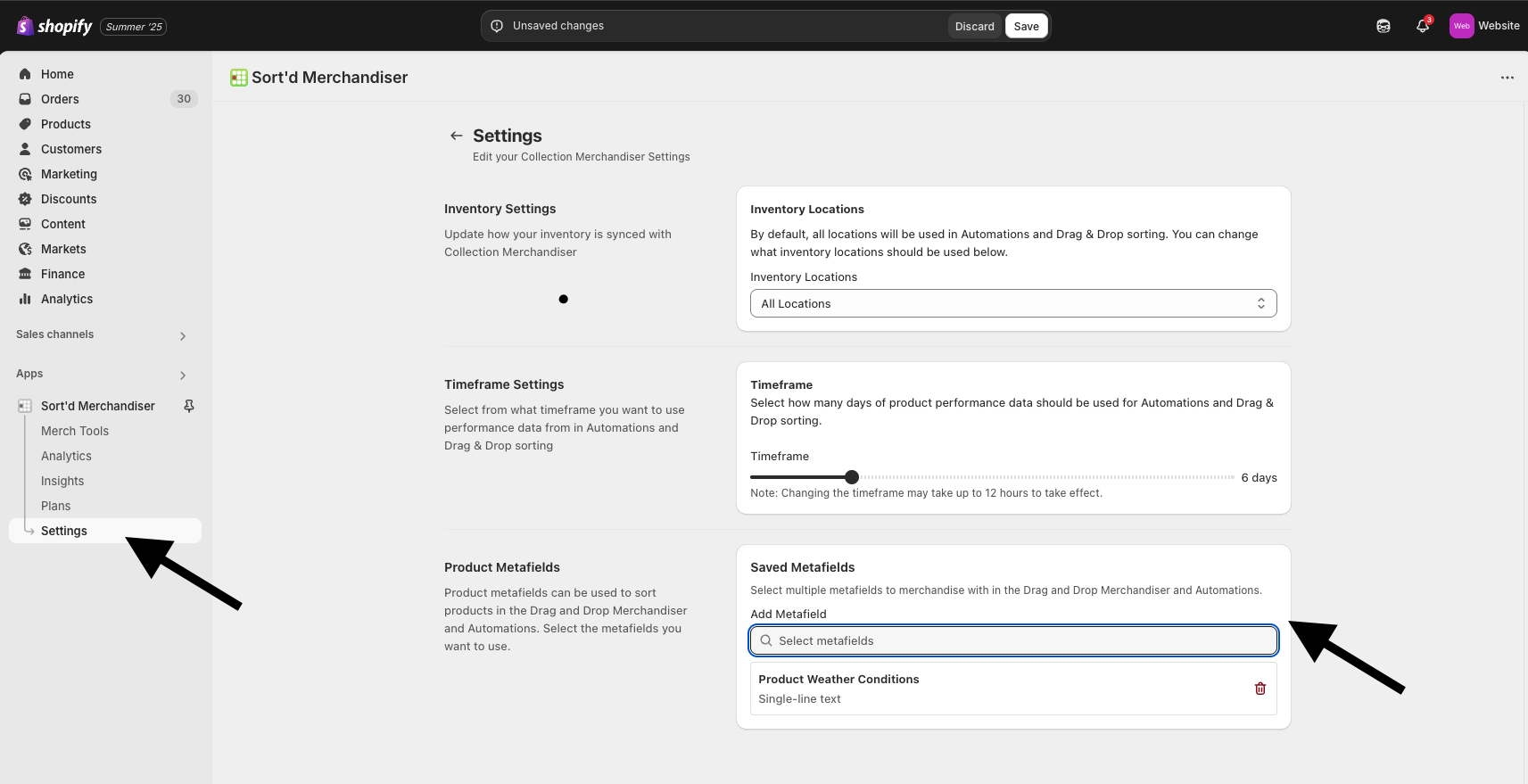
From here, select the product metafields you wish to view and use in Sort'd Merchandiser.
Most metafields will be available, however for any metafields that use a type that cannot be sorted (e.g. JSON, metaobjects), they will be grayed out.
A limit of 15 metafields can be added.
Once the metafields you wish to use have been added, click Save.
Sort'd will now need to complete a 'full store sync', this may take up to an hour but could be longer for very large stores. During this time, you may not see recent product and collection updates in the Merchandiser.
A banner will be shown throughout Sort'd explaining this.
How to view and sort with metafields in the Drag and Drop Merchandiser
Once the metafields have been added to Settings, you can view them on product cards using the relevant Display Options.
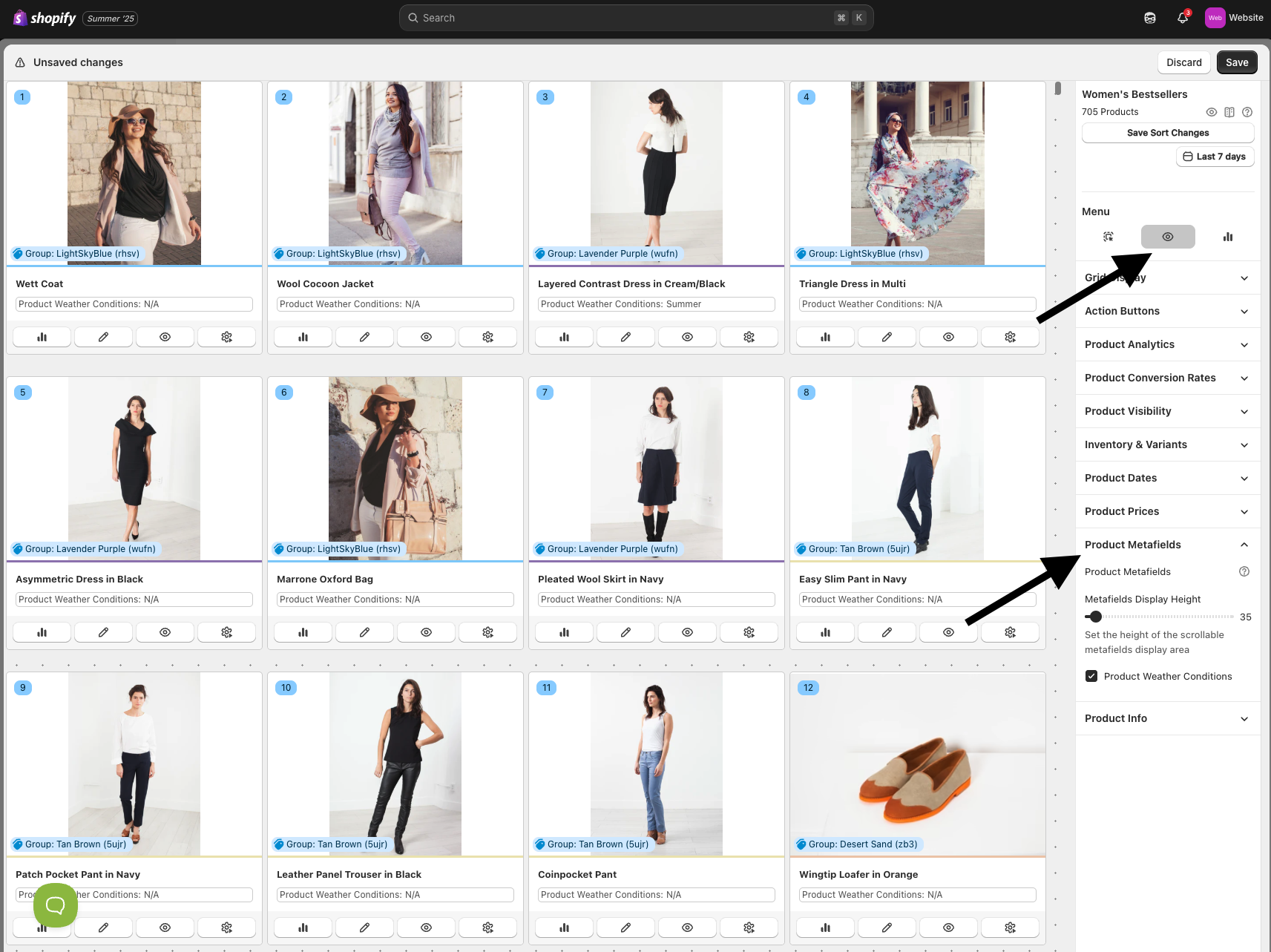
Any empty metafields will display as N/A.
While the metafields section on product cards is scrollable, you can adjust the height using the Metafields Display Height slider.
How to use product metafields with Smart Sort/Automations?
Smart Sorts (in the Drag and Drop Merchandiser) and Automations allow you to merchandise product based on pre-defined rules. You can use the metafields you added on the Settings page for these rules.
The Smart Sort below shows how you can select products, as well sort them, based on their metafields. Below we've selected all available products with a 'weather conditions' metafield of 'summer' and sorted them by a 'product weight' metafield from lightest to heaviest.
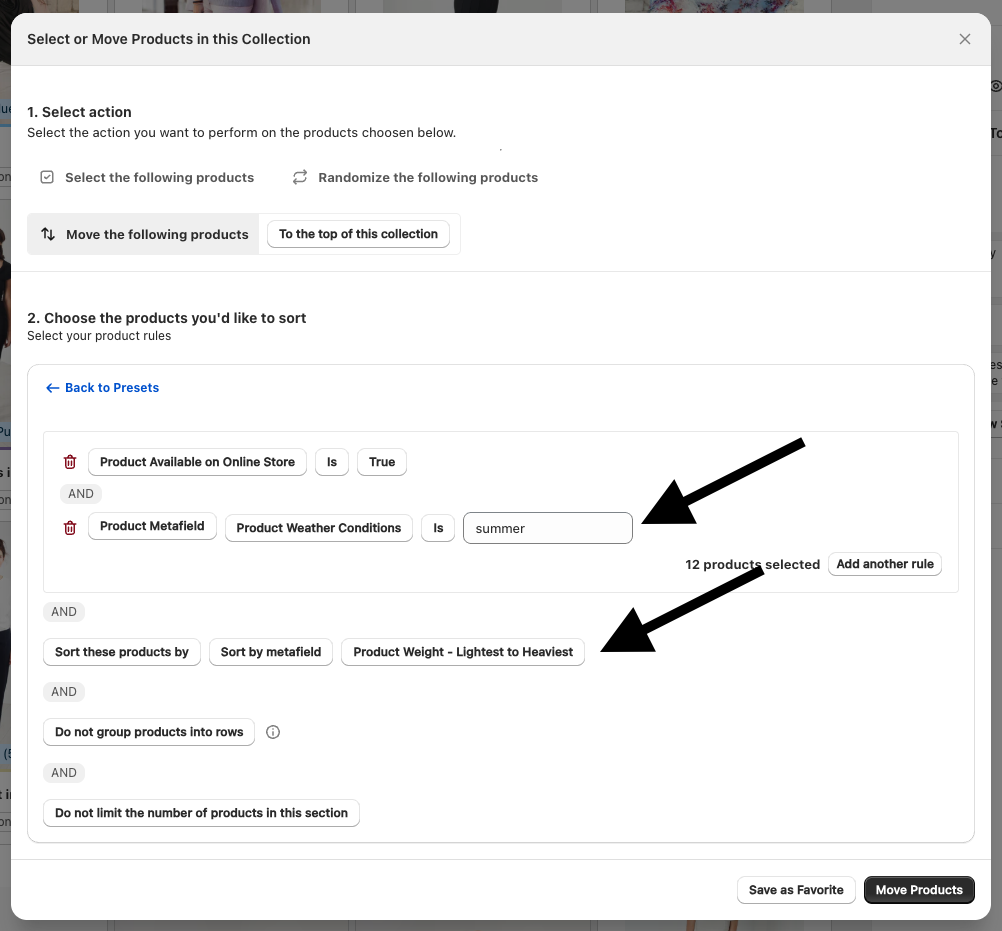
You can use these options in the exact same way to sort entire collection pages automatically using Automations.
Support on Metafields
If you have any questions or issues with product metafields, get in contact with support and they'll be happy to help.