,-make-an-image-using-it-as-a-reference---Make-it-an-image-of-a-3d-space,-the-camera-is-above-the-scene-looking-down---The-scene-is-on-a-white-background---Each-squ-(4).png)
Creating an A/B Test
A/B Testing is available on Sort'd Merchandiser Premium Pro plans
Sort'd Merchandiser allows you to create A/B tests to find winning merchandising strategies.
What is a Sort'd Merchandiser A/B Test?
An A/B test is when two (or more) variations of a page are shown at random to users. The performance of each of these pages are tracked, with the best performing page crowned the winner.
In Sort'd Merchandiser, you can test Automations and/or manual merchandising strategies for a single collection, finding the best performing approach.
For example, Version A can test an Automation promoting new products while Version B can test an Automation promoting bestsellers.
A winner is determined when the difference in metrics is statistically significant. We apply a formula to check how confident we are the difference in performance is genuine and not random, when we are sufficiently confident, the winner is found. The more views and conversions, the more likely the test will be statistically significant.
Quick Guide
- Under 'Settings', create a new A/B test, give it a name and select the collection that'll be used in your test.
- Under 'A/B Goal', select your A/B test goal from the options available
- Under 'Version A' and 'Version B', select two different merchandising strategies for each version (e.g. an Automation sorting new products for Version A and an Automation sorting bestsellers for Version B).
- Then go live (by selecting 'Active' under A/B Live Status) and then 'Save'.
- If asked about a theme change, we recommend selecting Automatically Added by Sort'd'.
- Your A/B test will test your merchandising strategies and show you your winning version. You can end the test at anytime.
Full Guide
Create your A/B test
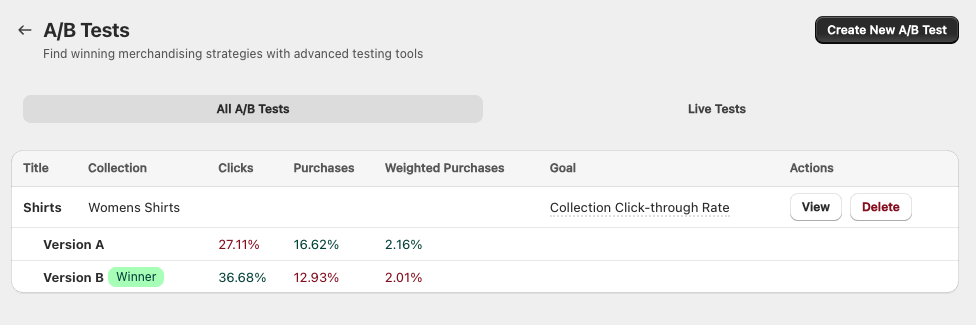
On the A/B test homepage, you'll see all your A/B tests - both draft and live. Clicking on 'Live Tests' will show you only live tests. Create 'Create New A/B Test' to start your own test.
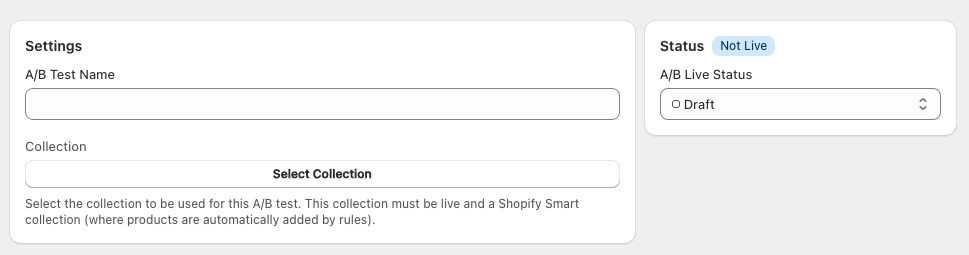
Give the test a name and select the collection it is going to run on. A single Sort'd Merchandiser's A/B test only tests one collection, try selecting a collection with a good amount of traffic.
Also try testing one of each type of collection (e.g. new in collections, sale collections, small subcollections).
Collections have to be live and a Smart collection (where products are added to the collection using rules, rather than manually). The reason for this is to ensure the products in the collection are the same for version A and version B.
If you wish to test a manual collection, we'd recommend creating a new Smart collection, add the same products using, for example, a product tag and swapping the collections temporarily. Once the test is compelte you can switch back.
Select your goal
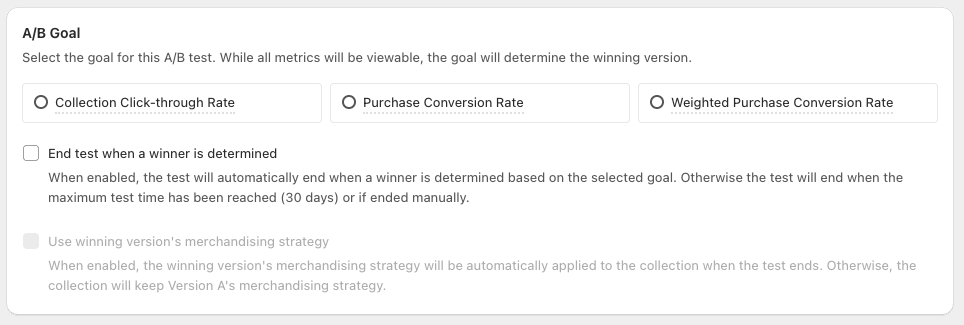
A/B tests have a goal - the metric that is tracked to determine which collection is a winner. In Sort'd, you can select one of three goals. All of these metrics will be tracked and the results shown, but the goal will determine the winning collection.
- Collection Click-throgh Rate: The percentage of people who view the collection page and click on a product to go to the product page. This metric shows which merchandising strategy is pushing customer down an important funnel step, getting people to the product page. This is useful for collections/stores with fewer purchases.
- Purchase Conversion Rate: The percentage of people who view the collection page then go on to purchase. This metric shows which merchandising strategy is helping to keep customers engaged with your product catalogue - resulting in purchases. This is recommended for stores/collections with sufficient purchases.
- Weighted Purchase Conversion Rate: Similar to purchase conversion rate, this is the percentage of people who view the collection then go on to purchase, but this is then divided by the total number of collections they viewed. For example, if a customer viewed the test collection and 3 other collections, the result would be 0.25 purchases (1 purchase divided by 4 collection views). This helps to get a clearer picture of a collection's performance in the context of your whole store.
Which goal you choose is up to you. We recommend starting with click-through rate. If you're confident your collection will result in a sufficient number of purchases, then either use purchase conversion rate or weighted purchase conversion rate. Weighted purchase conversion rate is better for top level collection pages that are a frequent starting point for customers (e.g. All Products, New In, Sale).
If you'd like the test to complete when a winner is found, check the 'End test when a winner is determined' checkbox. Otherwise, the test will only end in 30 days or if ended manually.
By default, Version A's merchandising strategy will be used when the test ends. If you'd like the winning strategy to be used, select 'Use winning version's merchandising strategy'.
Creating your Versions
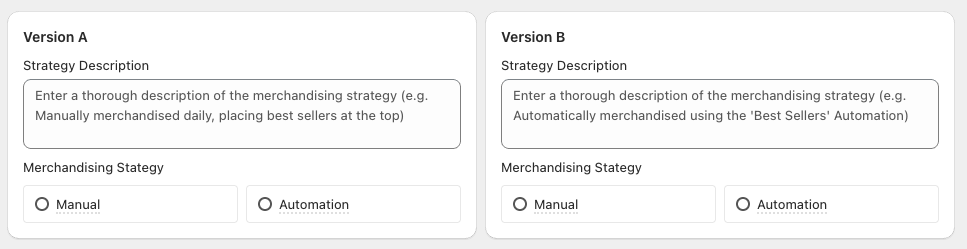
Now it's time to create your testing versions - Variant A and Variant B.
Give a thorough description of each version, you'll use this to identify what strategy is being applied.
Then select the type of strategy, you'll either select:
- Manual - the collection will be manually sorted by yourself using the Drag and Drop Merchandiser
- Automation - the collection will be added to an Automation, which automatically merchandises the collection
If you select Automation, you'll be prompted to select which Automations to use. If you haven't created the Automation yet, simply create one with your preferred rules. You do not need to add this test collection to the Automation, the test will do that for you.
For advice on creating Automations, follow this guide or get in touch.
If you select Manual, you will need to manually merchandise the collection yourself (using our Drag and Drop Merchandiser). You can keep merchandising the collection while the test if running if that's part of your merchandising strategy.
Going Live & Theme Change
You can Save your draft and return to it whenever you wish.
When ready to go live, change the Status (top right) to Live and click Save.
You'll then be prompted to select how you wish a theme update to take place. This theme update is a small non-visual change to your theme. While not essential it is highly recommended to ensure your test is fully SEO compliant.
By selecting 'Automatically Added by Sort'd', Sort'd Merchandiser's development team will implement this change for you. You can also choose to implement this change yourself by following these instructions.
Once live, no changes can be made to the test. it can be ended whenever you wish.
What is this change?
This change updates your canonical tags in your theme. Canonical tags are a way to tell search engines (e.g. Google, Bing) which pages should be indexed (i.e. listed on their search results) and which pages should not be indexed (i.e. not listing on search results). We update the canonical tag to ensure only one version (Variant A) is indexed.
Live Tests
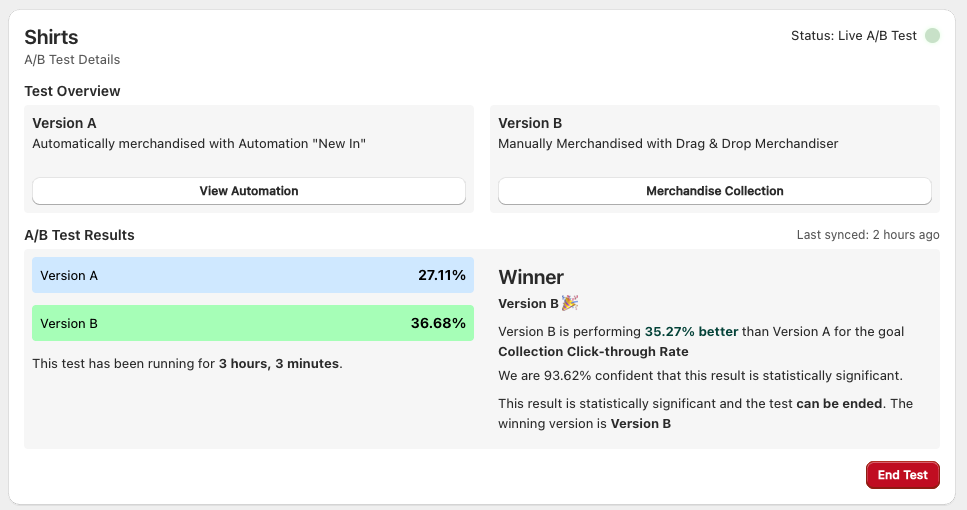
To view the results of a live test, either click View against the specific test or navigate to 'Live Tests'. Here you'll see the performance of the versions as well as if one has been crowned winner. You can also see a breakdown of what each version is testing. There'll also be a link to the collection in the Drag and Drop Merchandiser (for manually merchandised collections) or the Automation if it's added to one.
Visiting your Tests
When visiting your test collections, you'll either see Version A or get redirected to Version B.
If you ever wish to see one of the versions without getting redirected, add ?cmread=true to the URL. For example, when trying to view the new-in-mens collection, the URL would be:
http://example.com/collections/new-in-mens?cmread=true
Ending a Test
You can end a test at anytime by clicking 'End Test' on the results card. If the winning version was Variant B, you'll be asked if you'd like to use this merchandising strategy going forward. If you wish to delete a test, you can only do so once it has ended.
How our A/B Tests Work
When live, Sort'd Merchandiser will create a duplicate of your collection. Users will then either see version A or be redirected to Version B.
You will see both Version A and Version B as different collections in Shopify and Sort'd. You do not need to make any other changes (e.g. changing menu options, updating links). Sort'd will run and oversee this A/B test for you.
When the test is completed, Version B's collection page will be deleted (with a redirect added, so any users visiting that page will be taken the Version A collection page).